App.Map4.net
E-Rate Query Tool User Guide
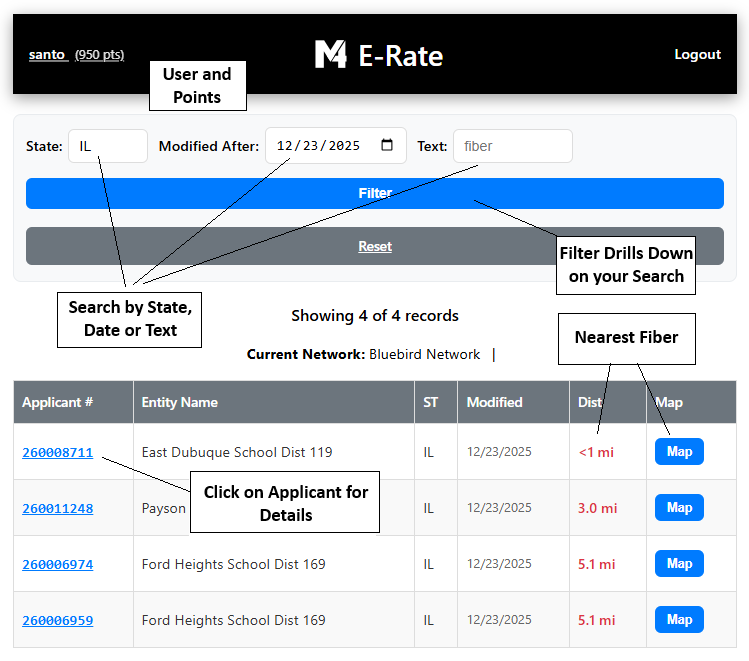
After you login to the web app, this is the main dashboard screen. It is designed primarily for mobile, but works fine on desktop browsers.
BLUE MAP BUTTON
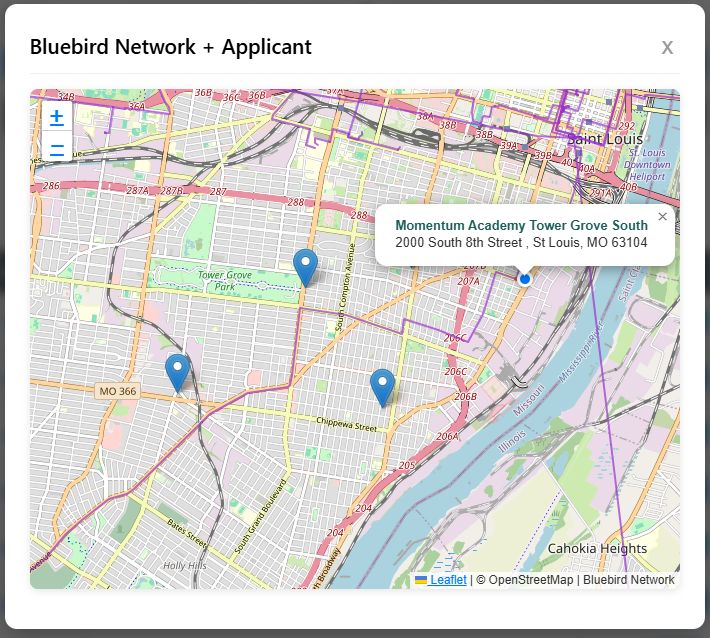
Clicking on the Blue Map Button from the main dashboard will plot the current applicants address to the current Fiber Network including mulitple addresses if they have them. You can zoom in and out and pan left right or up and down. Clicking on the pins will reveal more information about the address.
USERS AND POINTS
Users and Points
Our system tracks usage points when clicking on links and buttons. A guest user get 25 free user Points and a membership user gets 100 free points to test drive the application.
Your current Points will aways be displayed next to your user name. If logged in as guest, your username will be guest.
If you run out of Free Points, email support@map4.net to top up your points. Guest users cannot be topped up.
SEARCH (470 Applicants)
Search by State, Date or Text.
You can select a State, or a Last Modified Date or by Text. They can be selected one at a time, in any order or all three selections applied at one time. To apply your search click the blue FILTER button. The search results will update on the main dashboard and display them 10 at a time.
State Search: Can be any two letter USA state designation.
Last Modified Date: This is the date that the 470 Application was last modified. The search will include only applications that are AFTER this date.
Text: This is a full text search on the Catergory 1 or Category 2 fields on the 470 Applications.
Filter and Reset Buttons
The Filter button is used to apply your current selected search options. The Reset button will return the main dashboard display to all the records in the database.
The database is synced daily to the official open data policy US government system at usac.org
APPLICANT DETAILS
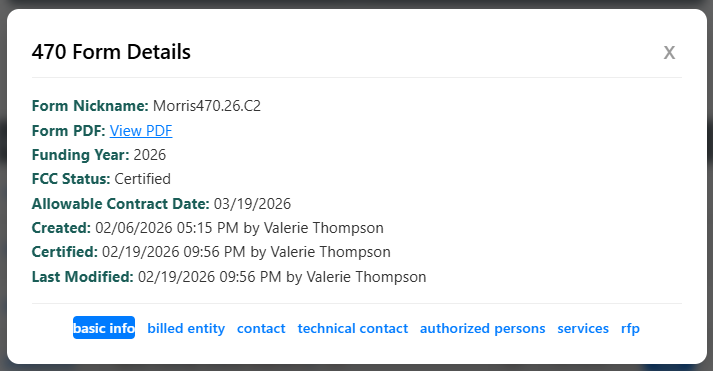
Applicant Details
By clicking on the Applicant# a popup screen will be displayed with the 470 Form Details. The initial screen includes basic Info, with clickable mini footer links to the other parts of the 470 details: billed entity, contact, technical contact, authorized persons and services. You can click on any of these links to replace the information in the popup screen.
USER SETTINGS
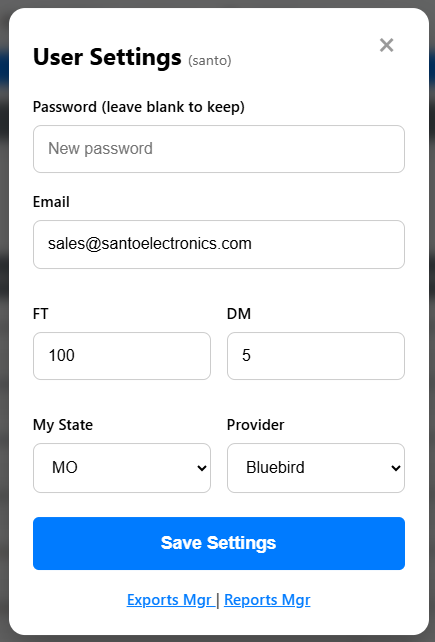
User Settings
By click on your user name in the upper left hand corner of the app, you can access your User Settings.
Password: You can change your Password.
Email: You can change your Membership Email
FT: This is your current Filter Threshold that is defaulted to 100. The turns on advanced search features when your search results are LESS THAN this threshold value.
DM: Distance Minimum is not being used at this time.
My State:is not being used at this time.
Provider: Guest Users can only use the Bluebird Network Setting. Member users should contact support@map4.net to change their Provider setting to one of our Provider Networks
You access the additional dashboards by clicking on the link under the Save Settings button.
Prospect Manager | Report Manager
ADVANCED SEARCH
Fiber Route Distance Calcuations
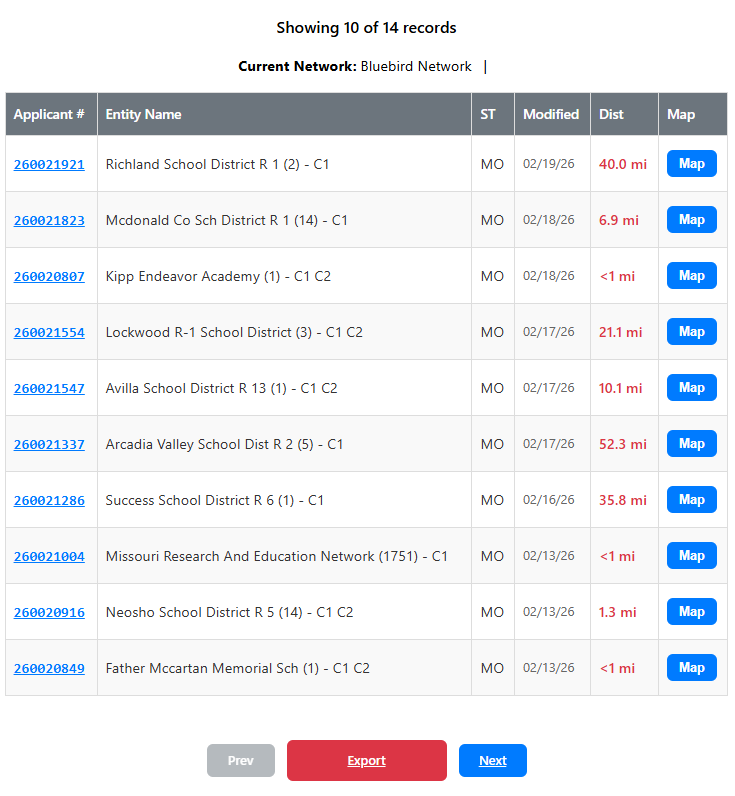
Advanced Searching (FT)
When your search results are LESS THAN your FT value set in your User Settings (Default is 100) then the application will calculate the NEAREST DISTANCE to one of our Fiber Network providers. This distance (in MIles) is shown in RED in the Dist column. You can verify the distance by clicking on the Blue Map button which will display a Map of the Applicants address and the nearest fiber provider route location.
The RED Export button will also become active. To export and download a CSV of desired Applicant records, follow these steps:
Step 1 - Click on the RED Distance Value of a desired Applicant - it will flash display “added” or “Already Added”. What this does is add to your CSV export file on our server. You can continue selecting additional Applicants to export by clicking on other desired RED Distance values.
Step 2 - To Download your selected applicants, Click on the RED Export Button. With one click, it will download the CSV file of the Applicants you selected to your computer.
Advanced 471 Form Access
How to use our 471’s for Historical Funding and Competitive Analysis
Step 1 - Search for a 470
Step 2 - Click on Applicant
Step 3 - Choose Billed Entity
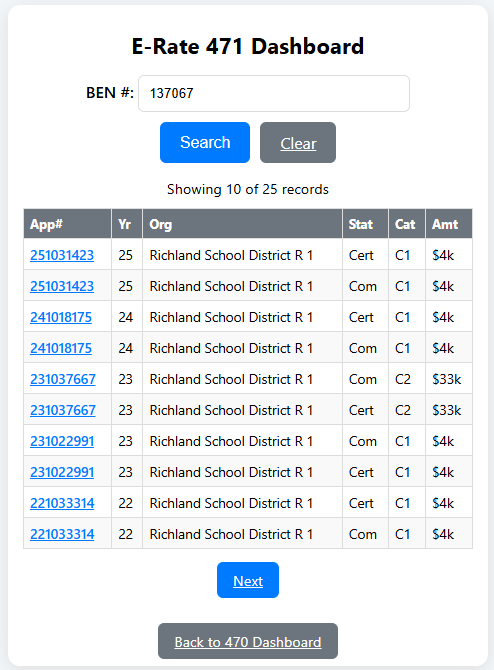
Step 4 - Click on BEN# (471 History)
Step 5 - This will search for all the schools funding history since 2016
Step 6 - Click on a 471 Applicant# to view all 57 fields plus Insights and access to the 471
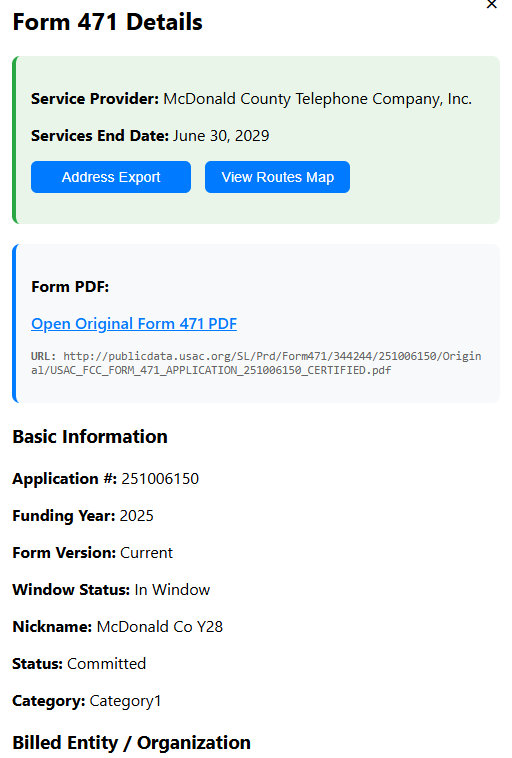
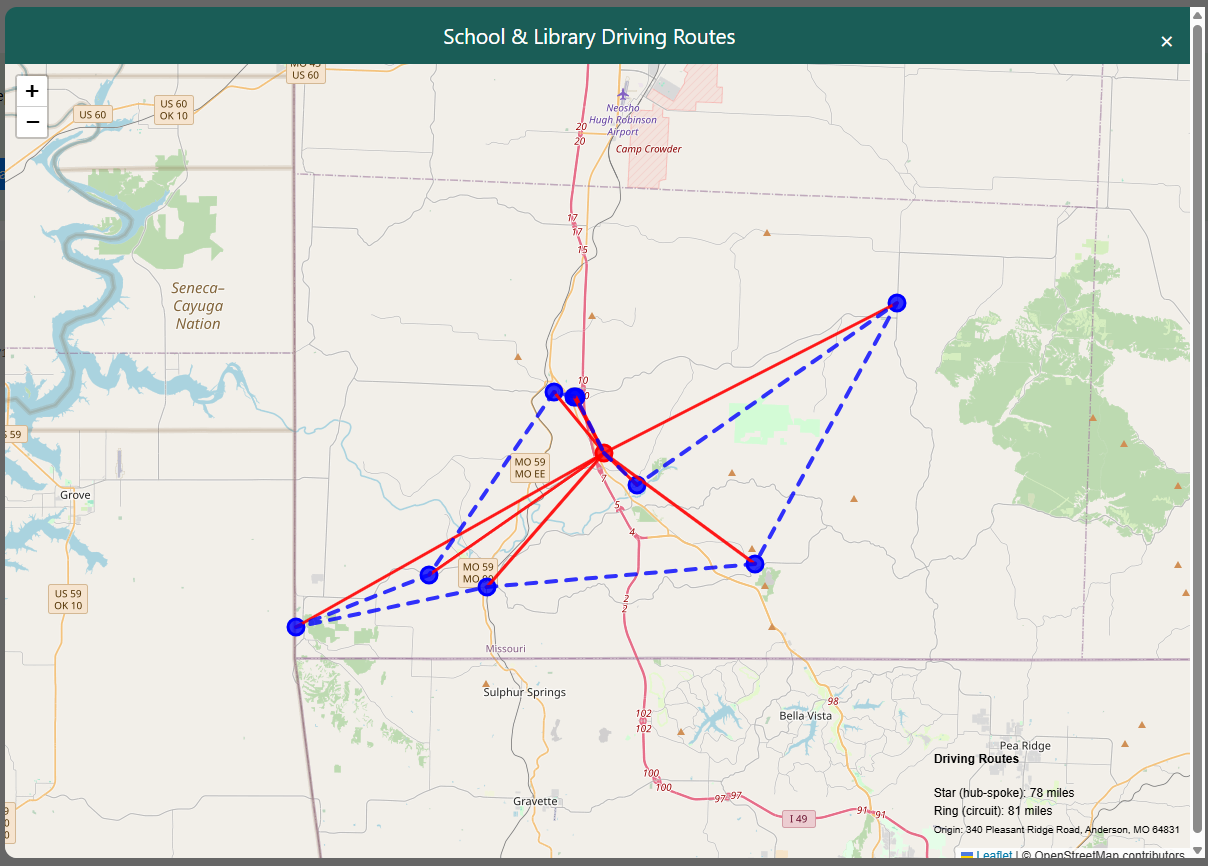
Step 7 - Click on the 471 PDF link in the popup display of all detailed information on each funding event found for the school. You can also view our Extracted Insights Section at the top in Green. We also have two Blue Buttons for additional insights on the applicants multiple address locations. Address Export and View Routes Map.
View Route Maps
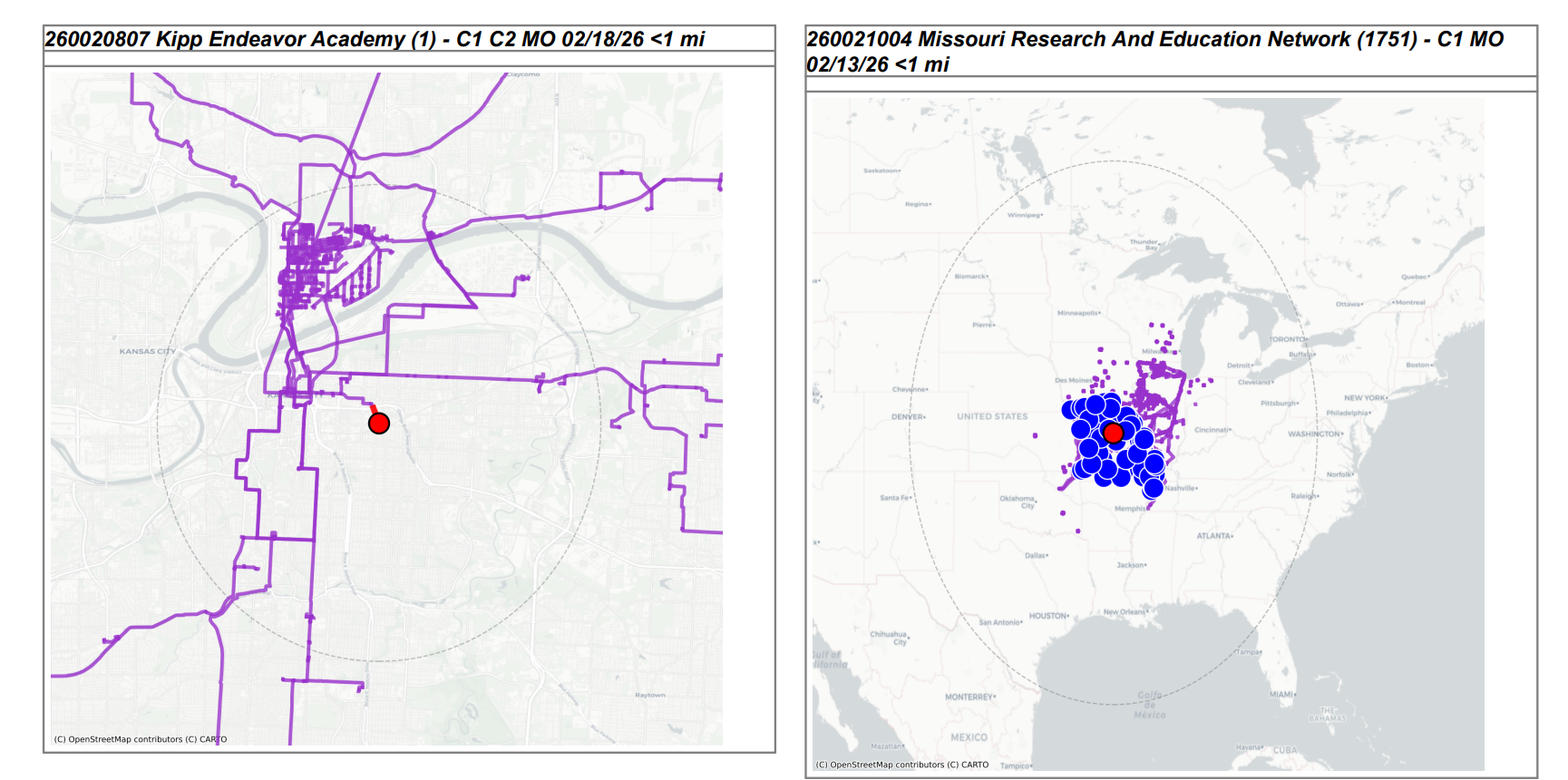
If the 471 Applicant has multiple addresses this tool can be useful to understand distances between the addresses. It will Calculate based on a Hub and Spoke and a Ring route and display them on a map.
Address Export
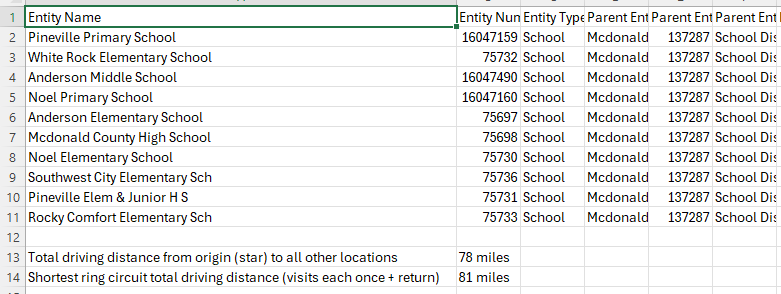
If the 471 Applicant has multiple addresses this tool can be useful as it exports the applicants addresses to a CSV file and automatically downloads them to the users computer. It also calculates Hub and Spoke and Ring Route Distances.
Advanced Text Searching
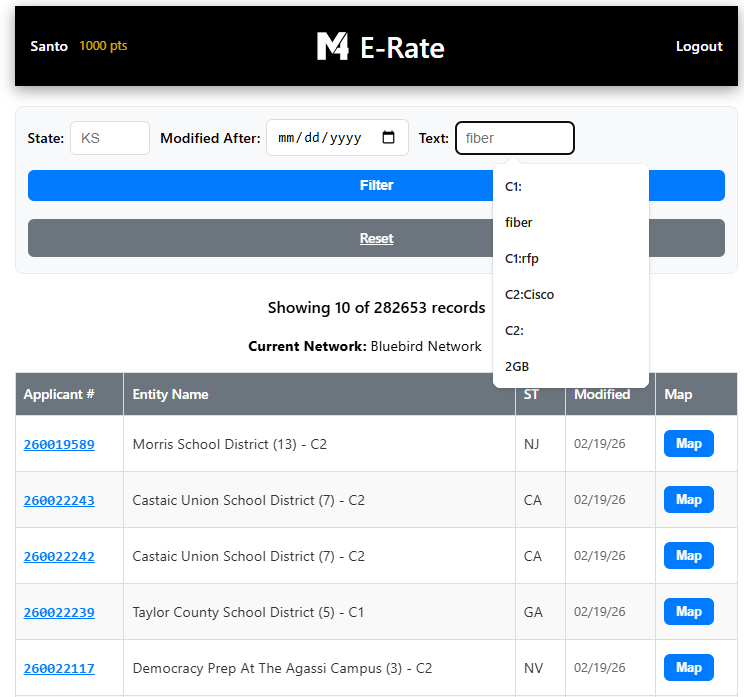
Advanced Text Searching Commands can be used to narrow your search by including pre commands followed by a colon and then a search keyword.
C1: (without a keyword)
Finds only records that have any amount of text in the Category 1 field.
C2: (without a keyword)
Finds only records that have any amount of text in the Category 2 field.
C1:keyword
Finds only records that have the keyword text in the Category 1 field.
C2:keyword
Finds only records that have the keyword text in the Category 2 field.
CY:keyword
Finds only records that have the keyword text in the Billed Entity City field
E:keyword+keyword
Finds only records with the keyword in the Entity Name Field
A:application#
Finds a unique 470 Application and displays in search results. This command should be used by itself meaning DO NOT combine with State or Modified Date because these are not needed.
Report Manager
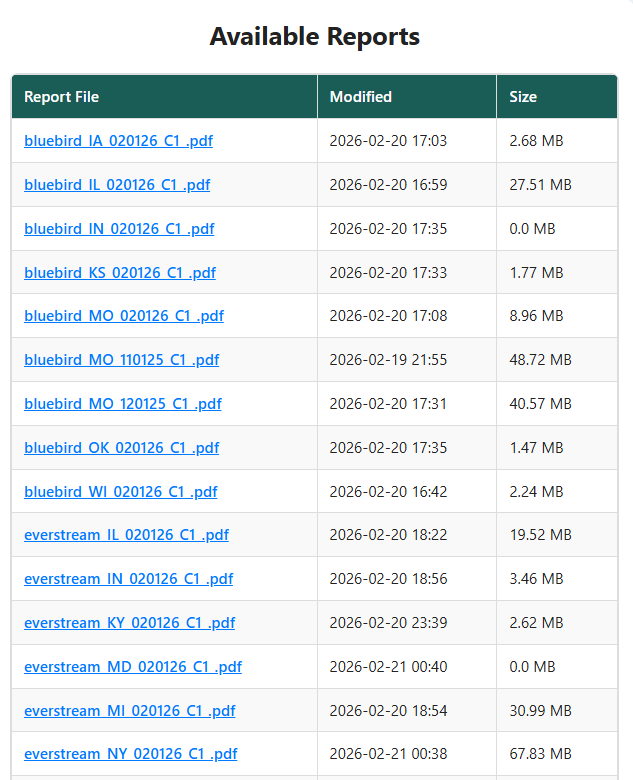
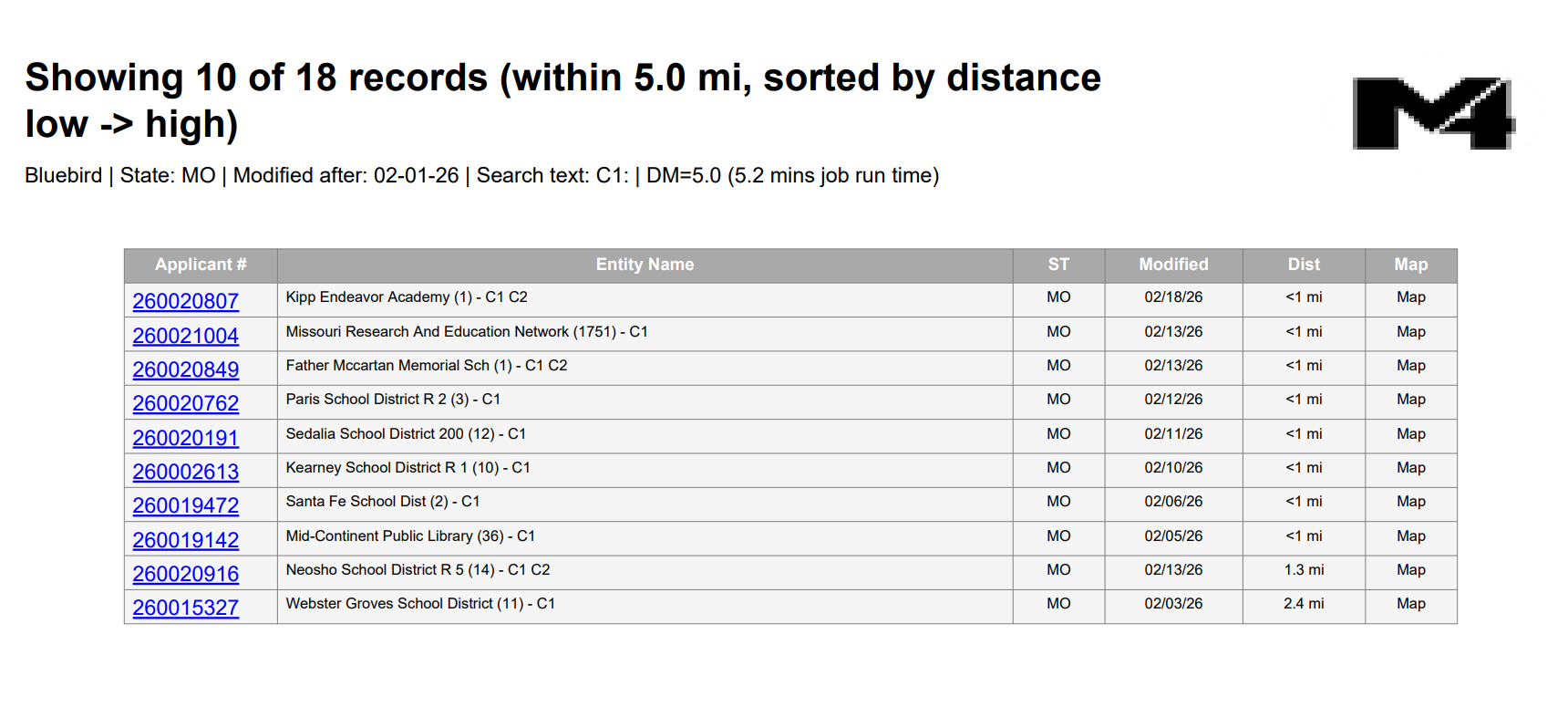
This is a Members only feature that generates detailed PDF reports that are sorted based on distance to the members fiber routes, by State and by Last Modified Date. These reports are run every night in the background, include links back to the 470 Applications in the main dashboard.
Prospect Manager
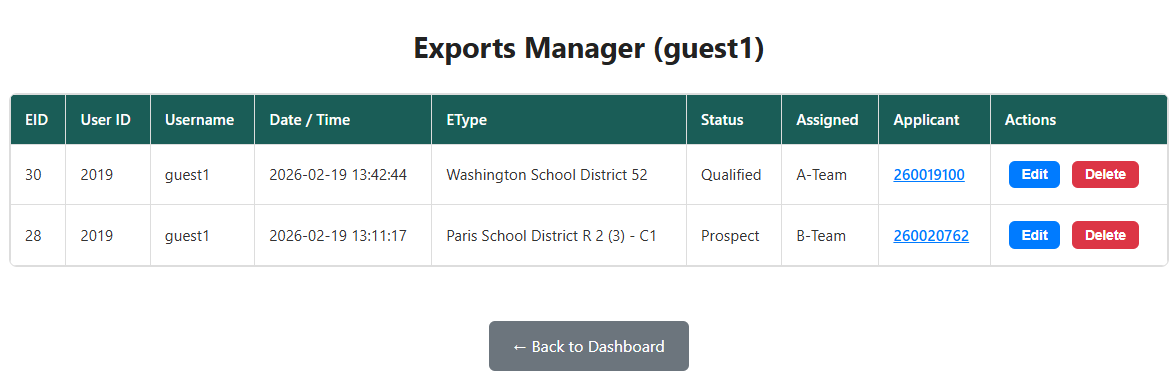
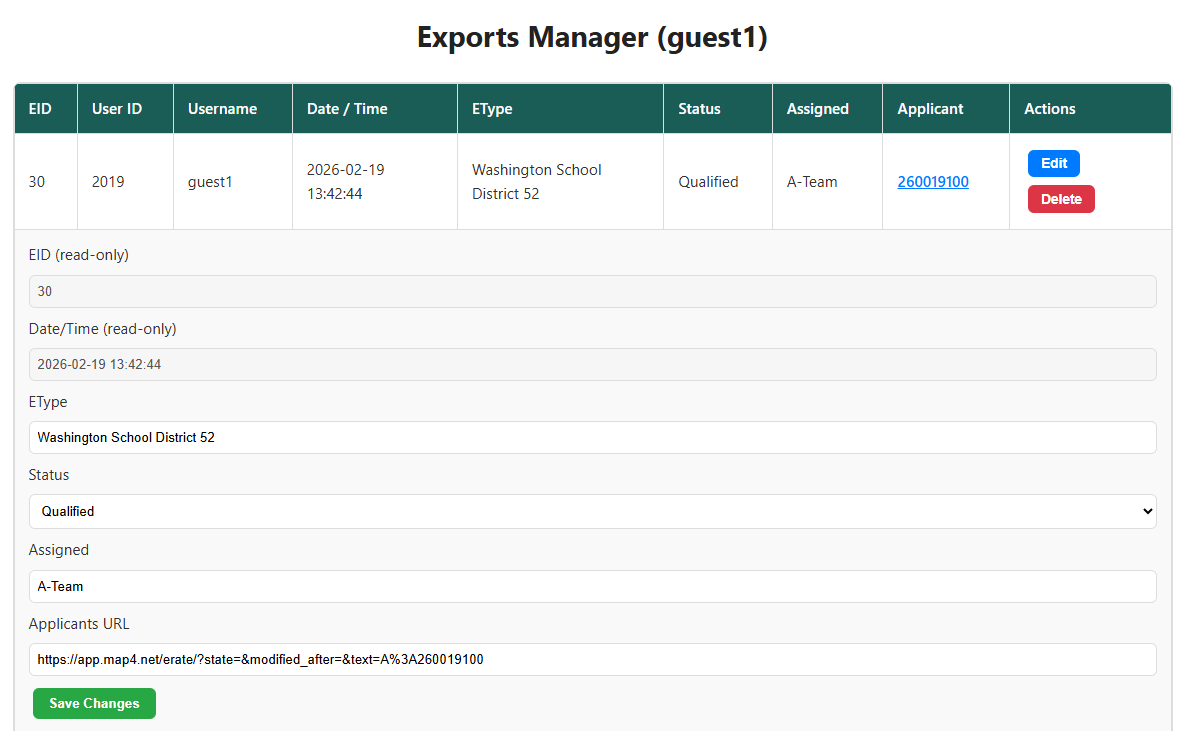
This is a Members only feature that stores selected 470 applications into a user specific database for keeping track of sales opportunities. It is used in conjunction (at the same time) as clicking on aRED distance value to build a CSV export file.
You access the Prospect Manager dashboard from the User Setting popup modal in the same way you access the Report Manager.
After you click on a RED distance value from the main dashboard, an Export entry will be automatically added for your User Name and account. Only you can access this information and Edit or Delete the information. You can then change the status of the opportunity and assign or add custom notes for your records.